I’ll be honest — the first time someone told me I could get live TV, sports, and thousands of channels on my Firestick for less than $20 a month, I didn’t believe them. I’d been paying Xfinity $130 a month for years. The idea that a little stick plugged into my HDMI port could replace all of that sounded like either a scam or something extremely complicated to set up.
It was neither. From the moment I started, the whole thing took me about eight minutes.
If you’ve been curious about IPTV but didn’t know where to begin — or if you tried once and got lost — this guide walks you through everything, step by step, in plain English.
What Is IPTV, and Why Is Everyone Talking About It in 2026?
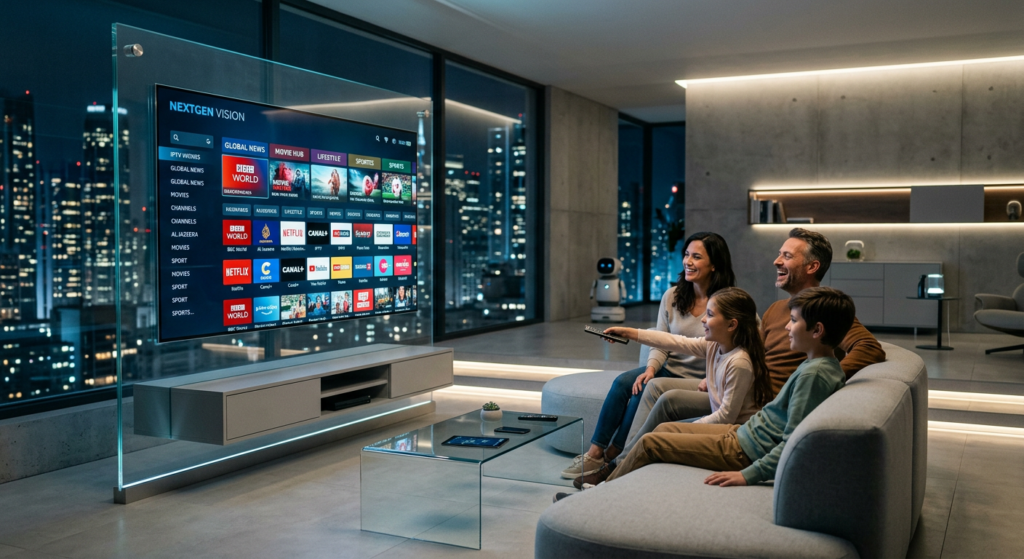
IPTV stands for Internet Protocol Television. Forget the acronym — it simply means watching TV through your internet connection instead of through a cable wire or satellite dish. Your Firestick is already connected to your Wi-Fi. IPTV just uses that connection to stream live channels, sports, movies, and series directly to your screen.
The reason it exploded in 2026 is simple: cable got too expensive, and IPTV got good enough to replace it. We’re talking 4K quality, instant channel switching, electronic program guides, and sports coverage from every major network — all on the device you probably already own.
What You Need Before You Start
Nothing complicated. Here’s the short list:
A Firestick — any model works, but the Fire TV Stick 4K Max gives you the best picture quality if you have a 4K TV. The standard HD model is perfectly fine for most households.
A solid internet connection — aim for at least 25 Mbps for 4K, or 15 Mbps for HD. If you’re unsure, run a quick speed test on speedtest.net. For live sports especially, a wired Ethernet connection (using an Ethernet adapter for your Firestick) will give you the most stable stream.
An IPTV subscription — you’ll need login credentials from a provider: either an M3U URL or Xtream Codes (a username, password, and server URL). More on choosing a good provider below.
That’s it. No technician. No hardware installation. No contracts.
Step 1 — Enable Apps from Unknown Sources on Your Firestick
By default, your Firestick only installs apps from the Amazon App Store. To use IPTV apps, you need to allow it to install apps from outside the store. This is a standard setting — it’s not a hack, and it doesn’t void your warranty.
Here’s how to do it:
From your Firestick home screen, go to Settings (the gear icon at the top right). Then navigate to My Fire TV, then Developer Options. You’ll see an option called Apps from Unknown Sources — toggle it ON.
If you don’t see Developer Options, go to Settings → My Fire TV → About, then click on your Fire TV Stick name seven times in a row. This unlocks the Developer Options menu.
Step 2 — Install the Downloader App
The Downloader app is a free tool from the official Amazon App Store. It acts as a browser that lets you download and install IPTV apps that aren’t listed in the Amazon store.
From your Firestick home screen, press the search icon (the magnifying glass) and type Downloader. You’re looking for the orange icon — it’s made by AFTVnews and is completely safe. Install it and open it.
When the app opens, it’ll ask for a URL or a download code. This is where you’ll enter the address for your IPTV player app in the next step.
Step 3 — Install an IPTV Player App
An IPTV player is the app that reads your subscription’s channel list and plays the streams. Think of it like a TV remote — your subscription provides the channels, the player is how you browse and watch them.
There are two apps worth knowing in 2026:
IPTV Smarters Pro — the best choice for beginners. It has a clean, Netflix-style layout with separate tabs for live TV, movies, and series. Setup takes under a minute. You can find it directly in the Amazon App Store by searching “IPTV Smarters Pro” — no Downloader needed.
TiviMate — the favorite of experienced IPTV users. It has a more advanced interface, an excellent electronic program guide (EPG), and better customization options. To install it via Downloader, enter the code 272483 in the URL field and hit Go. It’ll download and install automatically.
For your first time, start with IPTV Smarters Pro. You can always switch later once you’re comfortable.
Step 4 — Add Your IPTV Subscription
Open IPTV Smarters Pro. On the first screen, it will ask how you want to log in. You have two options depending on what your provider gave you:
If you have an M3U URL: Choose “Add User” → “Load Your Playlist or File/URL” → paste your M3U link → give it a name → click Add.
If you have Xtream Codes (username + password + server URL): Choose “Add User” → “Login with Xtream Codes API” → enter your username, password, and server URL exactly as provided → click Add.
Within about 30 seconds, your full channel list, VOD library, and program guide will load. That’s it. You’re in.
Step 5 — Test Before You Trust
This step matters more than people realize. Before you commit to a paid subscription — or before any major live event you’re counting on watching — test your service on a live sports channel during a busy evening hour. That’s when servers are under the most load. If it handles a live game smoothly at 9 PM on a Tuesday, it’ll handle the World Cup.
Any reputable IPTV provider will offer a free trial — usually 24 to 48 hours — before asking for payment. Use it specifically for this test. Don’t just open a movie on demand and call it done. Find a live sports channel and watch it for 20 minutes. Check for buffering, freezing, or audio sync issues. If you see none, you’ve found a reliable service.
How to Fix Buffering (If It Happens)
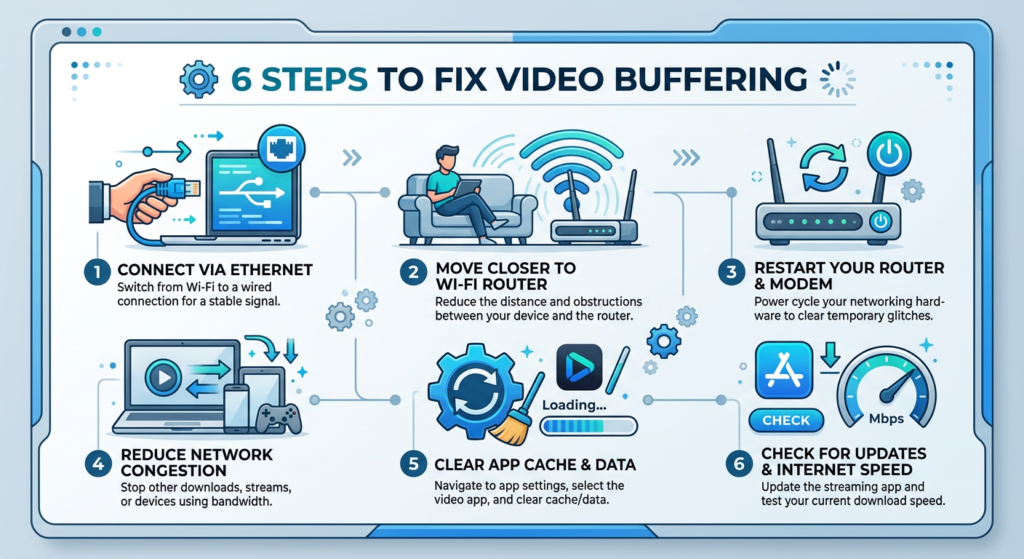
Buffering is the most common complaint with IPTV, and in almost every case, it’s a network issue — not a problem with the service itself. Here’s what to try, in order:
Switch from Wi-Fi to Ethernet. This is the single biggest fix. A wired connection eliminates interference and drops. Get a Fire TV Ethernet Adapter (under $15 on Amazon) and plug directly into your router.
Clear the cache of your IPTV app. Go to Settings → Applications → Manage Installed Applications → find your IPTV app → Clear Cache. Do this once a week if you watch daily.
Lower the stream quality temporarily. Most IPTV players let you switch between HD and SD streams for the same channel. During peak hours, the SD stream is often smoother on a slower connection.
Restart your router. Obvious, but effective. Unplug it for 30 seconds, plug back in, and try again.
If none of these help and buffering is consistent, the issue is likely the provider — not your setup. That’s a sign to try a different service.
Choosing the Right IPTV Provider: What Actually Matters
There’s no shortage of IPTV providers in 2026, and the quality gap between them is enormous. Here’s what separates the reliable ones from the ones that disappear after a month:
Uptime and server stability — especially for live sports. Ask providers directly about their infrastructure and uptime record during major events.
A genuine free trial — no credit card required, at least 24 hours, specifically testable on live channels. If a provider doesn’t offer a trial, move on.
Active customer support — live chat or fast ticket response is a sign the service is professionally operated. Radio silence when something breaks is not acceptable.
A clear, organized channel list — your key channels (Fox, ESPN, Telemundo, beIN Sports, NFL Network, NBA TV, local news) should be easy to find and clearly labeled.
No long-term commitment required — a good provider lets you subscribe monthly, without pressure to pay for a full year upfront before you’ve tested it properly.
The Bottom Line
Setting up IPTV on a Firestick is genuinely one of the easiest tech things you can do in 2026. Ten minutes, no tools, no expertise required. The hardest part is choosing the right provider — and that’s mostly solved by insisting on a free trial before you pay anything.
Once it’s running, the difference versus cable is immediate. More channels. More flexibility. Multiple devices. And a monthly bill that’s usually $100 less than what you were paying before.
The Firestick is already in millions of American homes. Most people just don’t realize what it’s actually capable of.
Frequently Asked Questions
Is it legal to use IPTV on a Firestick?
Using a Firestick and IPTV apps is completely legal. The legality depends on the content rights held by the specific provider you subscribe to. Choose a provider that operates transparently and, if privacy is a concern, consider using a VPN alongside your IPTV service.
Do I need a VPN for IPTV on Firestick?
A VPN isn’t required for IPTV to work, but many users add one for an extra layer of privacy. If you use a VPN, choose one with servers in the US and a fast enough speed that it doesn’t introduce buffering. ExpressVPN and NordVPN are the most commonly used with Firestick setups.
What’s the best IPTV app for Firestick in 2026?
For beginners, IPTV Smarters Pro is the easiest to set up and use. For more advanced users who want a premium TV guide and deeper customization, TiviMate is the top choice. Both support M3U and Xtream Codes logins.
Can I watch the World Cup 2026 through IPTV on my Firestick?
Yes. Quality IPTV services include Fox, FS1, Telemundo, and international World Cup broadcasts. You can watch all 104 matches live, often with the choice of multiple language feeds from different countries.
How much does IPTV cost compared to cable?
A quality IPTV subscription typically runs between $15 and $25 per month. The average cable bill in the US is $120–$160 per month. Most households that switch save between $1,000 and $1,500 per year.